
As mentioned last week, one of the most tedious processes with the CCV is updating the bibliography. If most of your contributions are indexed in PubMed, last week offered a great short cut … but for the rest of us, what can be done?
The Web of Science provides the capability to download your bibliography as a BibTeX file. One key advantage of this service is that the upload to CCV from the BibTeX formatted by Web of Science goes usually smoothly without introducing errors in the authors or titles. This cannot be said of Google Scholar. Furthermore, the CCV software will check whether the newly uploaded contributions are repeats of ones already there which can be useful, but perhaps you want to start fresh.
The CCV is contained within an XML file that you can export, edit and import again. Upon import you can choose to update only particular sections of the CCV. This functionality allows for some flexibility to script updates to the CCV.
One-Upload Technique
Use Web of Science to search for your articles over the time span required by the NSERC instructions.
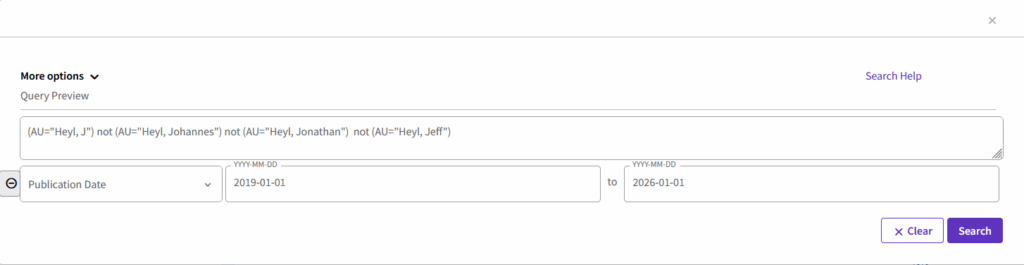
Once you have adjusted your search to get only the papers that you need, select Export>Excel and then click the radio button so that you get all of the entries.
- Run the following python script on the Excel file: https://www.phas.ubc.ca/~heyl/excel2xml.py to produce an XML file to upload to CCV
- Using the Utilities tab, Export CV XML so you have a backup.
- Using the Utilities tab, Import CV XML and upload the new XML CV.
- Select the sections that you want to update.
NB: this technique will overwrite whatever is already in the sections that you choose to update, so be careful and make the backup XML file.
Depending on your pandas implementation, it may only read the first fifty lines of the xls file. If so, convert it to xlsx and give that a try.
The script will specify that all journal articles are already published and refereed and all conference publications are published papers, not refereed and not invited. You should now have a valid NSERC bibliography that you can correct hopefully just a few entries to reflect their statuses.
By adding additional columns to the spreadsheet called
- Publishing Status
- Refereed?
- Invited?
- Conference Publication Type
you can override the defaults for any publication. If you leave the entry blank or choose an invalid value, the default will be used, so that you will still have a valid NSERC CCV.
Three-Upload Technique
Starting Fresh
First, it is useful to have a file with just a single entry each for the Journal Articles and Conference Publications sections so that you can effectively start a section fresh without having to delete entries one by one. Here it is https://phas.ubc.ca/~heyl/test.xml
To use this file, simply choose Export CV XML under Utilities so that you have a backup. Then choose Import CV XML and select the test.xml file that you downloaded. You will be able to choose which sections to replace. The replaced sections will just have a single entry that is easy to delete and start with a blank bibliography.
A key advantage of starting fresh is that you can upload only those papers within the time period required for NSERC (within the past 6 years) using search parameters from Web of Science restrict the dates of the publications.
Uploading from Web of Science
After uploading the test.xml file to erase the Journal Articles and Conference Publications, we can focus our search on just the time span required by NSERC.
Once you have adjusted your search to get only the papers that you need, select Export>BibTeX and then click the radio button so that you get all of the entries.
Going back to the CCV website, Choose Utilities and Import publication from file.
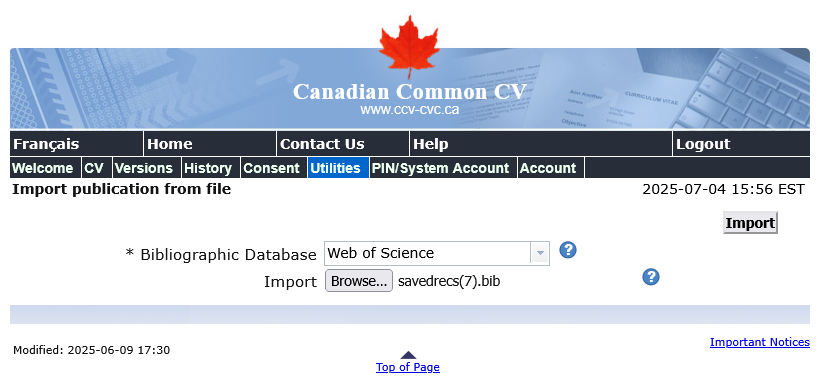
The CCV software will identify which the type of each bibliographic entry, and you can select which to import.
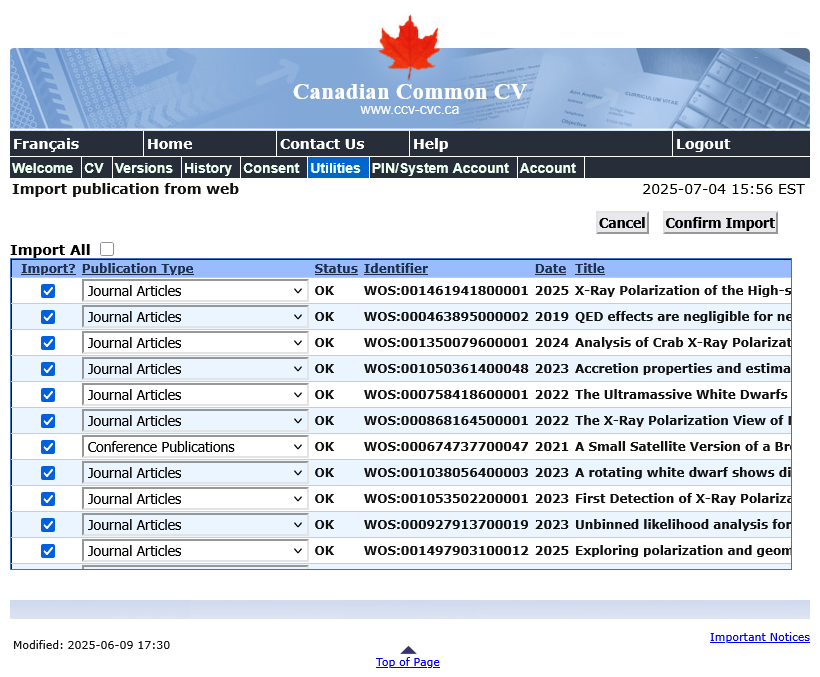
Now you have a complete generic CV. However, the CCV software does not know that you are submitting an NSERC CV, so select the NSERC CV, and look at the sections with the errors (probably Journal Articles and Conference Publications).
Setting the NSERC Flags
Now, one is left with the tedious process of indicating which papers are published and refereed. NSERC requires the following additional flags to be set
- Publishing Status
- Refereed?
- Invited? (for conference publications only)
- Conference Publication Type (for conference publications only)
Generally, most of the entries for each category will be the same, e.g. Refereed, Published, Paper and not Invited, so rather than set them individually you can set them all the same and correct only those that are different. As all of the CV data is contained in an XML file, we can edit that file to achieve this.
- Using the Utilities tab, Export CV XML and download the XML CV
- Run the following python script on the XML file: https://www.phas.ubc.ca/~heyl/procxml.py
- Again using the Utilities tab, Import CV XML and upload the new XML CV.
- Select the sections that you want to update.
The script is not too clever. It will change all of the status flags that it finds to the same values wherever it encounters them in the file, so you should run the script to set the correct typical values for each of the contribution sections, and upload and update each section separately. Typically, most people will have mainly Journal Articles and Conference Publications so this should not take too long.
Unfortunately, the script cannot make a guess for the Conference Name field which is required by NSERC, so you will have to enter this individually for the Conference Publications. The information is available in the BiBTeX file as a “Note” field.